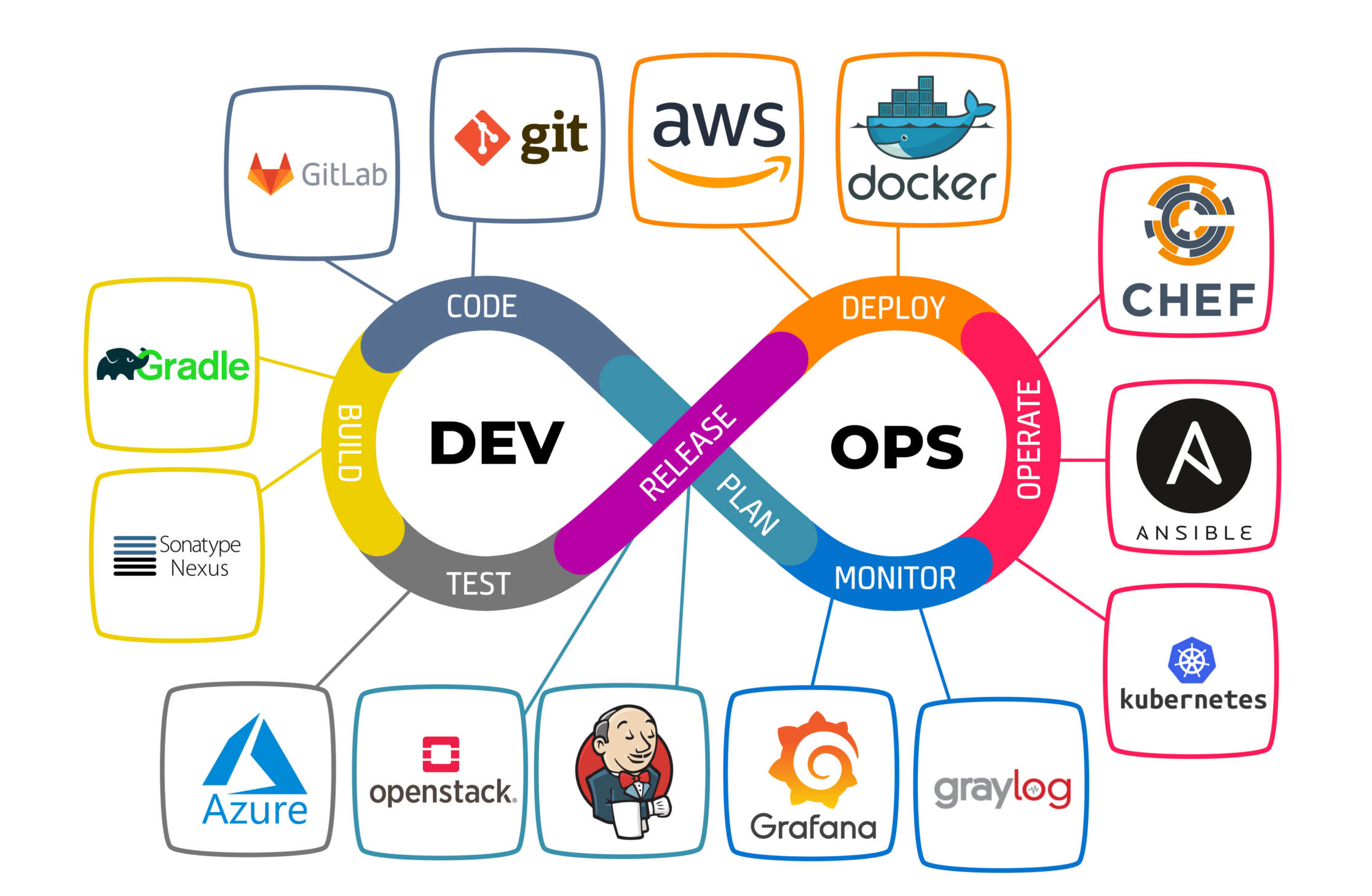
DevOps Roadmap
What is DevOps?
DevOps is a set of practices that combines software development (Dev) and IT operations (Ops). It aims to shorten the systems development life cycle and provide continuous delivery with high software quality. DevOps is complementary to Agile software development.
Why DevOps?
Faster Delivery: Automate everything from code to production. Companies like Netflix, Amazon, and Google deploy thousands of times per day using DevOps practices!
DevOps Tools Ecosystem
Linux
Operating System
Git
Version Control
Docker
Containerization
Kubernetes
Orchestration
Jenkins
CI/CD
Terraform
Infrastructure as Code
Ansible
Configuration
AWS/Azure
Cloud Platform
Linux Fundamentals
Linux is the backbone of DevOps. Almost all servers, containers, and cloud infrastructure run on Linux. Mastering Linux commands is essential for any DevOps engineer.
Essential Linux Commands
User & Permission Management
Permission Numbers
r=4, w=2, x=1
755 = Owner(rwx=7), Group(r-x=5), Others(r-x=5)
644 = Owner(rw-=6), Group(r--=4), Others(r--=4)
Process & System Management
Package Management
Git Version Control
Git is the most widely used version control system. It tracks changes in source code during software development and enables collaboration among developers.
Git Basics
Branching & Merging
Remote Repositories
Docker Containers
Docker is a platform for developing, shipping, and running applications in containers. Containers are lightweight, portable, and ensure consistency across different environments.
Containers vs VMs
Containers share the host OS kernel, making them much lighter than VMs. A container can start in seconds, while a VM takes minutes!
Install Docker
Docker Commands
Dockerfile
A Dockerfile is a text file containing instructions to build a Docker image.
# Base image
FROM python:3.11-slim

# Set working directory
WORKDIR /app

# Copy requirements first (for caching)
COPY requirements.txt .

# Install dependencies
RUN pip install --no-cache-dir -r requirements.txt

# Copy application code
COPY . .

# Expose port
EXPOSE 8000

# Environment variable
ENV PYTHONUNBUFFERED=1

# Run command
CMD ["python", "manage.py", "runserver", "0.0.0.0:8000"]
Docker Compose
Docker Compose allows you to define and run multi-container applications.
version: '3.8'

services:
  web:
    build: .
    ports:
      - "8000:8000"
    environment:
      - DEBUG=True
      - DATABASE_URL=postgres://postgres:password@db:5432/mydb
    depends_on:
      - db
      - redis
    volumes:
      - .:/app
    networks:
      - app-network

  db:
    image: postgres:15
    environment:
      - POSTGRES_DB=mydb
      - POSTGRES_USER=postgres
      - POSTGRES_PASSWORD=password
    volumes:
      - postgres_data:/var/lib/postgresql/data
    networks:
      - app-network

  redis:
    image: redis:7-alpine
    networks:
      - app-network

  nginx:
    image: nginx:latest
    ports:
      - "80:80"
    volumes:
      - ./nginx.conf:/etc/nginx/nginx.conf
    depends_on:
      - web
    networks:
      - app-network

volumes:
  postgres_data:

networks:
  app-network:
    driver: bridge
Kubernetes Orchestration
Kubernetes (K8s) is an open-source container orchestration platform that automates deployment, scaling, and management of containerized applications.
kubectl Commands
Kubernetes Manifests
apiVersion: apps/v1
kind: Deployment
metadata:
  name: web-app
  labels:
    app: web
spec:
  replicas: 3
  selector:
    matchLabels:
      app: web
  template:
    metadata:
      labels:
        app: web
    spec:
      containers:
      - name: web
        image: nginx:latest
        ports:
        - containerPort: 80
        resources:
          limits:
            memory: "128Mi"
            cpu: "500m"
          requests:
            memory: "64Mi"
            cpu: "250m"
        env:
        - name: ENV
          value: "production"
---
apiVersion: v1
kind: Service
metadata:
  name: web-service
spec:
  type: LoadBalancer
  selector:
    app: web
  ports:
  - protocol: TCP
    port: 80
    targetPort: 80
apiVersion: v1
kind: ConfigMap
metadata:
  name: app-config
data:
  DATABASE_HOST: "postgres-service"
  DATABASE_PORT: "5432"
  CACHE_HOST: "redis-service"
---
apiVersion: v1
kind: Secret
metadata:
  name: app-secret
type: Opaque
data:
  DATABASE_PASSWORD: cGFzc3dvcmQxMjM=  # base64 encoded
  API_KEY: c2VjcmV0a2V5MTIz
Scaling & Updates
CI/CD Pipelines
CI/CD (Continuous Integration/Continuous Deployment) automates the software delivery process. CI ensures code changes are automatically tested, while CD automates deployment to production.
GitHub Actions
name: CI/CD Pipeline

on:
  push:
    branches: [ main, develop ]
  pull_request:
    branches: [ main ]

env:
  REGISTRY: ghcr.io
  IMAGE_NAME: ${{ github.repository }}

jobs:
  test:
    runs-on: ubuntu-latest
    steps:
      - name: Checkout code
        uses: actions/checkout@v4

      - name: Set up Python
        uses: actions/setup-python@v4
        with:
          python-version: '3.11'

      - name: Install dependencies
        run: |
          python -m pip install --upgrade pip
          pip install -r requirements.txt

      - name: Run tests
        run: |
          pytest --cov=app tests/

      - name: Lint code
        run: |
          pip install flake8
          flake8 app/

  build:
    needs: test
    runs-on: ubuntu-latest
    steps:
      - name: Checkout code
        uses: actions/checkout@v4

      - name: Login to Container Registry
        uses: docker/login-action@v3
        with:
          registry: ${{ env.REGISTRY }}
          username: ${{ github.actor }}
          password: ${{ secrets.GITHUB_TOKEN }}

      - name: Build and push Docker image
        uses: docker/build-push-action@v5
        with:
          context: .
          push: true
          tags: ${{ env.REGISTRY }}/${{ env.IMAGE_NAME }}:${{ github.sha }}

  deploy:
    needs: build
    runs-on: ubuntu-latest
    if: github.ref == 'refs/heads/main'
    steps:
      - name: Deploy to Kubernetes
        uses: azure/k8s-deploy@v4
        with:
          manifests: |
            k8s/deployment.yaml
            k8s/service.yaml
          images: |
            ${{ env.REGISTRY }}/${{ env.IMAGE_NAME }}:${{ github.sha }}
Jenkins Pipeline
pipeline {
    agent any

    environment {
        DOCKER_IMAGE = 'myapp'
        DOCKER_TAG = "${BUILD_NUMBER}"
    }

    stages {
        stage('Checkout') {
            steps {
                checkout scm
            }
        }

        stage('Build') {
            steps {
                sh 'pip install -r requirements.txt'
            }
        }

        stage('Test') {
            steps {
                sh 'pytest tests/ --junitxml=test-results.xml'
            }
            post {
                always {
                    junit 'test-results.xml'
                }
            }
        }

        stage('Docker Build') {
            steps {
                sh "docker build -t ${DOCKER_IMAGE}:${DOCKER_TAG} ."
            }
        }

        stage('Push to Registry') {
            steps {
                withCredentials([usernamePassword(
                    credentialsId: 'docker-hub',
                    usernameVariable: 'DOCKER_USER',
                    passwordVariable: 'DOCKER_PASS'
                )]) {
                    sh "docker login -u $DOCKER_USER -p $DOCKER_PASS"
                    sh "docker push ${DOCKER_IMAGE}:${DOCKER_TAG}"
                }
            }
        }

        stage('Deploy') {
            when {
                branch 'main'
            }
            steps {
                sh "kubectl apply -f k8s/"
                sh "kubectl set image deployment/myapp myapp=${DOCKER_IMAGE}:${DOCKER_TAG}"
            }
        }
    }

    post {
        success {
            slackSend channel: '#deployments',
                      color: 'good',
                      message: "Deployment successful: ${env.JOB_NAME} #${env.BUILD_NUMBER}"
        }
        failure {
            slackSend channel: '#deployments',
                      color: 'danger',
                      message: "Deployment failed: ${env.JOB_NAME} #${env.BUILD_NUMBER}"
        }
    }
}
Terraform IaC
Terraform is an Infrastructure as Code (IaC) tool that lets you define and provision infrastructure using declarative configuration files. It supports multiple cloud providers.
Terraform Basics
AWS Infrastructure
# Configure AWS Provider
terraform {
  required_providers {
    aws = {
      source  = "hashicorp/aws"
      version = "~> 5.0"
    }
  }
}

provider "aws" {
  region = "us-east-1"
}

# Variables
variable "instance_type" {
  description = "EC2 instance type"
  default     = "t3.micro"
}

# VPC
resource "aws_vpc" "main" {
  cidr_block           = "10.0.0.0/16"
  enable_dns_hostnames = true

  tags = {
    Name = "main-vpc"
  }
}

# Subnet
resource "aws_subnet" "public" {
  vpc_id                  = aws_vpc.main.id
  cidr_block              = "10.0.1.0/24"
  map_public_ip_on_launch = true
  availability_zone       = "us-east-1a"

  tags = {
    Name = "public-subnet"
  }
}

# Security Group
resource "aws_security_group" "web" {
  name        = "web-sg"
  description = "Allow HTTP and SSH"
  vpc_id      = aws_vpc.main.id

  ingress {
    from_port   = 80
    to_port     = 80
    protocol    = "tcp"
    cidr_blocks = ["0.0.0.0/0"]
  }

  ingress {
    from_port   = 22
    to_port     = 22
    protocol    = "tcp"
    cidr_blocks = ["0.0.0.0/0"]
  }

  egress {
    from_port   = 0
    to_port     = 0
    protocol    = "-1"
    cidr_blocks = ["0.0.0.0/0"]
  }
}

# EC2 Instance
resource "aws_instance" "web" {
  ami                    = "ami-0c7217cdde317cfec"
  instance_type          = var.instance_type
  subnet_id              = aws_subnet.public.id
  vpc_security_group_ids = [aws_security_group.web.id]

  user_data = <<-EOF
              #!/bin/bash
              apt update -y
              apt install -y nginx
              systemctl start nginx
              EOF

  tags = {
    Name = "web-server"
  }
}

# Output
output "public_ip" {
  value = aws_instance.web.public_ip
}
Ansible Configuration
Ansible is an open-source automation tool for configuration management, application deployment, and task automation. It uses YAML-based playbooks and is agentless.
Inventory & Playbooks
# Inventory file
[webservers]
web1.example.com ansible_host=192.168.1.10
web2.example.com ansible_host=192.168.1.11

[dbservers]
db1.example.com ansible_host=192.168.1.20

[all:vars]
ansible_user=ubuntu
ansible_ssh_private_key_file=~/.ssh/id_rsa
---
- name: Configure Web Servers
  hosts: webservers
  become: yes
  vars:
    http_port: 80
    app_name: myapp

  tasks:
    - name: Update apt cache
      apt:
        update_cache: yes
        cache_valid_time: 3600

    - name: Install Nginx
      apt:
        name: nginx
        state: present

    - name: Copy Nginx config
      template:
        src: nginx.conf.j2
        dest: /etc/nginx/sites-available/{{ app_name }}
      notify: Restart Nginx

    - name: Enable site
      file:
        src: /etc/nginx/sites-available/{{ app_name }}
        dest: /etc/nginx/sites-enabled/{{ app_name }}
        state: link

    - name: Ensure Nginx is running
      service:
        name: nginx
        state: started
        enabled: yes

  handlers:
    - name: Restart Nginx
      service:
        name: nginx
        state: restarted
Cloud Platforms
Cloud platforms provide on-demand computing resources. The three major providers are AWS, Azure, and Google Cloud Platform (GCP).
AWS CLI
Key AWS Services for DevOps
EC2: Virtual servers | S3: Object storage | EKS: Kubernetes | ECR: Container registry | Lambda: Serverless | RDS: Databases | CloudWatch: Monitoring
Monitoring & Logging
Monitoring and logging are essential for maintaining healthy production systems. They help detect issues, analyze performance, and troubleshoot problems.
Prometheus
Metrics Collection
Grafana
Visualization
ELK Stack
Log Management
Alertmanager
Alerting
Prometheus Configuration
global:
  scrape_interval: 15s
  evaluation_interval: 15s

alerting:
  alertmanagers:
    - static_configs:
        - targets:
          - alertmanager:9093

rule_files:
  - "alerts.yml"

scrape_configs:
  - job_name: 'prometheus'
    static_configs:
      - targets: ['localhost:9090']

  - job_name: 'node-exporter'
    static_configs:
      - targets: ['node-exporter:9100']

  - job_name: 'kubernetes-pods'
    kubernetes_sd_configs:
      - role: pod
    relabel_configs:
      - source_labels: [__meta_kubernetes_pod_annotation_prometheus_io_scrape]
        action: keep
        regex: true
Networking Basics
Understanding networking is crucial for DevOps. It helps in troubleshooting, configuring services, and securing applications.
Essential Network Commands
Common Ports
22: SSH | 80: HTTP | 443: HTTPS | 3306: MySQL | 5432: PostgreSQL | 6379: Redis | 27017: MongoDB
DevSecOps
DevSecOps integrates security practices into the DevOps pipeline. Security should be built into every stage of the software development lifecycle.
Security Best Practices
Secrets Management
Never hardcode secrets. Use tools like HashiCorp Vault, AWS Secrets Manager, or environment variables.
Container Security
Scan images for vulnerabilities using Trivy, Snyk, or Aqua Security. Use minimal base images.
Infrastructure Security
Apply principle of least privilege. Use security groups, NACLs, and firewalls properly.
Code Security
Use SAST tools like SonarQube, Snyk, or Checkmarx to scan code for vulnerabilities.
Security Checklist
1. Enable MFA on all accounts
2. Rotate credentials regularly
3. Use HTTPS everywhere
4. Keep software updated
5. Implement logging and monitoring
6. Regular security audits
Security in CI/CD Pipeline
name: Security Scan

on:
  push:
    branches: [ main ]
  pull_request:
    branches: [ main ]

jobs:
  security-scan:
    runs-on: ubuntu-latest
    steps:
      - name: Checkout code
        uses: actions/checkout@v4

      - name: Run Trivy vulnerability scanner
        uses: aquasecurity/trivy-action@master
        with:
          scan-type: 'fs'
          scan-ref: '.'
          severity: 'CRITICAL,HIGH'

      - name: Run Snyk to check for vulnerabilities
        uses: snyk/actions/node@master
        env:
          SNYK_TOKEN: ${{ secrets.SNYK_TOKEN }}

      - name: Run GitLeaks
        uses: gitleaks/gitleaks-action@v2
        env:
          GITHUB_TOKEN: ${{ secrets.GITHUB_TOKEN }}

      - name: SonarCloud Scan
        uses: SonarSource/sonarcloud-github-action@master
        env:
          GITHUB_TOKEN: ${{ secrets.GITHUB_TOKEN }}
          SONAR_TOKEN: ${{ secrets.SONAR_TOKEN }}
DevOps Journey Complete!
You've covered all the essential DevOps concepts! Remember, DevOps is a continuous learning journey. Keep practicing, building projects, and stay updated with the latest tools and best practices.
You're Now a DevOps Engineer!
From Linux fundamentals to Kubernetes orchestration, you've learned the complete DevOps toolkit. Now go build, automate, and deploy amazing applications!